
MCP Service Management
Depends on CC Sandbox: Yes
Must be bound to a workspace: Yes
MCP (Model Context Protocol) lets AI capabilities go beyond conversation boundaries.
Through the MCP protocol, you can connect your workspace to a wide range of external tools and data sources — database queries, API calls, monitoring systems, project management platforms, search engines, and more. The AI is no longer limited to text conversations; it can directly operate real tools and services.
MCP services run inside the Claude Code Sandbox, so the CC Sandbox must be enabled first.
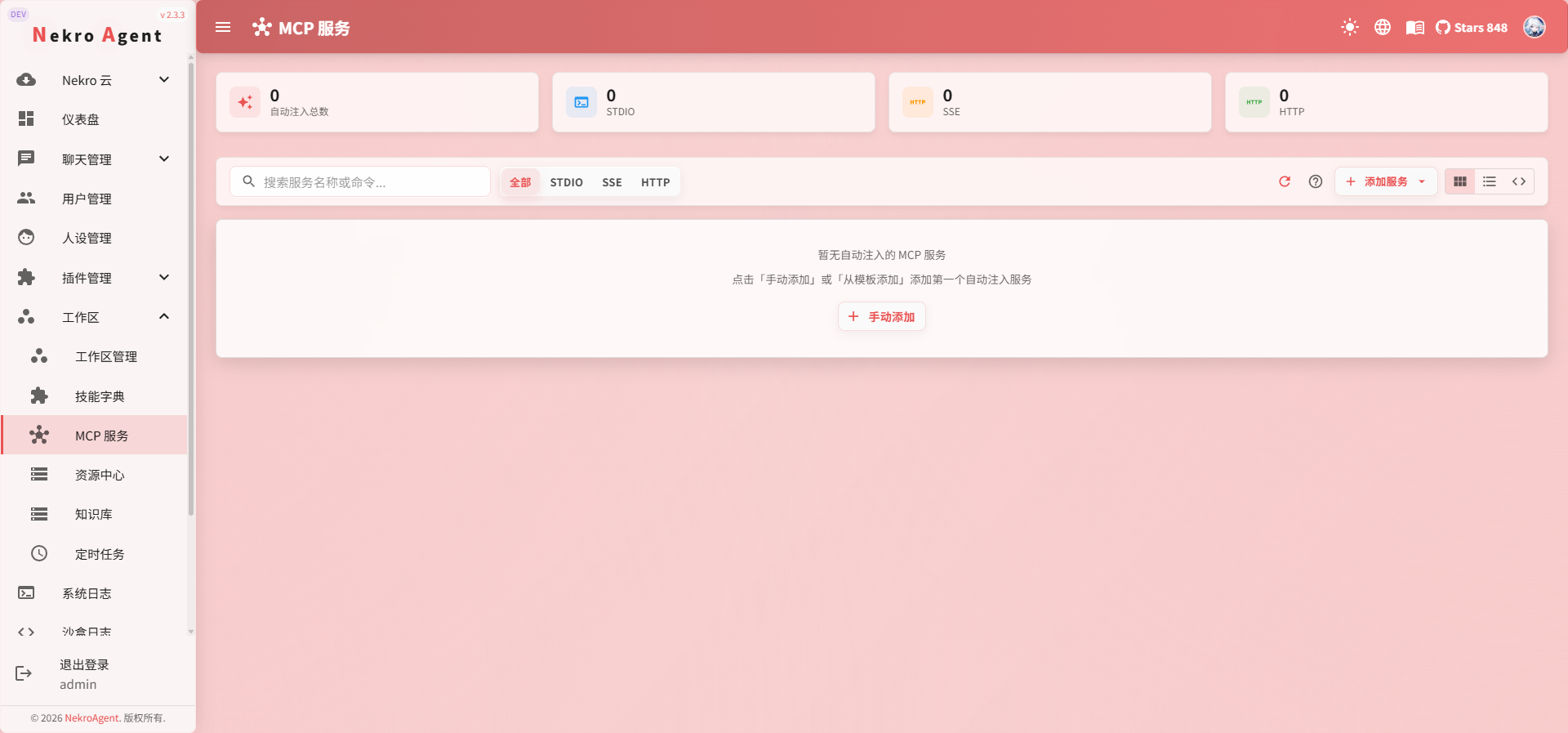
What MCP Can Do
MCP is an open protocol, and the community already has a large number of ready-to-use MCP services. Here are some typical scenarios:
| Scenario | MCP Service Examples | What the AI Can Do |
|---|---|---|
| Search | Brave Search, Google Search | Search the internet in real time for the latest information |
| Code Management | GitHub, GitLab | Create PRs, manage Issues, view repositories |
| Database | PostgreSQL, MySQL, SQLite | Query and operate databases directly |
| File Storage | S3, Google Drive | Read and write cloud files |
| Monitoring | Datadog, Sentry | View monitoring metrics and error logs |
| Communication | Slack, Discord | Send messages and retrieve channel information |
| Knowledge Management | Notion, Confluence | Read and update documents |
| Task Management | Linear, Jira | Manage project tasks and boards |
This is just the tip of the iceberg. Any service that supports the MCP protocol can be connected.
Why Manage by Workspace
Different workspaces serve different purposes and require different tools:
- Development workspace: GitHub + PostgreSQL + Sentry
- Operations workspace: Datadog + server management tools
- Content workspace: Notion + Google Search + image generation
Managing MCP services by workspace allows you to:
- Precisely control the scope of capabilities: Each workspace loads only the tools it needs
- Avoid interference: Irrelevant tools won't appear in the AI's available list
- Independent configuration: Different workspaces can connect to different data source instances
Prerequisites
Before using MCP services, confirm that the following preparations are complete:
- A workspace has been created and a channel is bound
- The workspace has an available CC Model Group configured
- The Claude Code Sandbox is started and running normally
Supported Transport Types
MCP services support three connection methods:
| Type | Use Case | Configuration |
|---|---|---|
| stdio | Most common; based on local command-line processes | Specify command and arguments |
| SSE | Remote services; based on Server-Sent Events | Specify URL |
| HTTP | Remote services; based on Streamable HTTP | Specify URL |
Most community MCP services use the stdio type, launched via npx or uvx.
Configuration Steps
1. Access the MCP Management Page
Find the MCP service management area in the workspace detail page.
2. Add an MCP Service
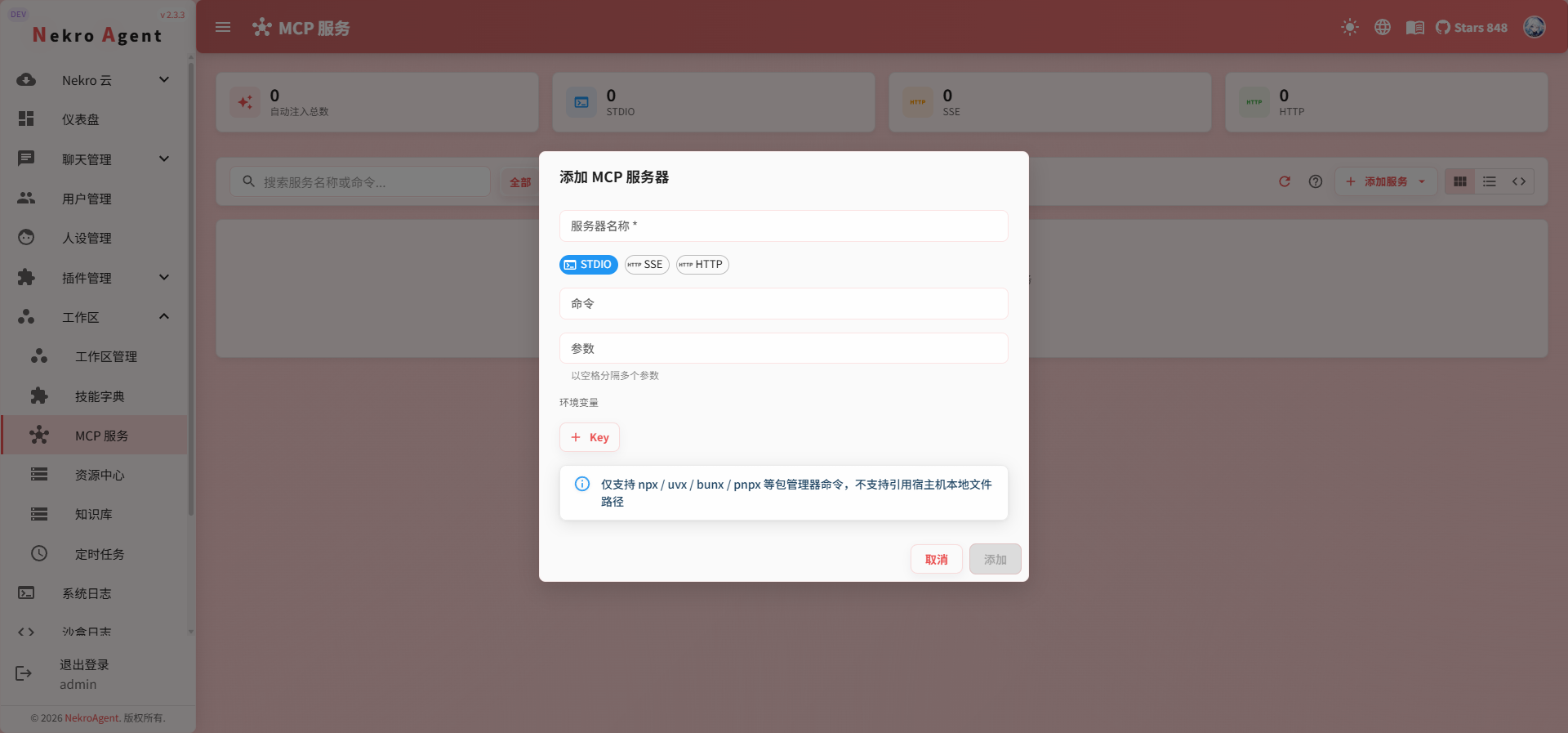
Fill in the configuration based on the transport type:
stdio type (local command):
- Service name
- Startup command (e.g.,
npx) - Command arguments (e.g.,
["-y", "@modelcontextprotocol/server-github"]) - Environment variables (e.g.,
{"GITHUB_TOKEN": "ghp_xxx"})
SSE / HTTP type (remote service):
- Service name
- Service URL
- Request headers (e.g., authentication information)
3. Save and Sync
Save after configuration. MCP services are automatically loaded when the CC Sandbox starts.
If you modify MCP configuration while the sandbox is running, you need to sync or restart the sandbox for changes to take effect.
Usage Tips
- Add as needed: You don't need to configure all tools at once; add them when you encounter a need
- Pay attention to authentication: MCP services usually require authentication such as API tokens, passed via environment variables
- Verify connections: After adding, have the AI call the new tool in conversation to confirm the configuration is correct
- Follow the community: The MCP protocol ecosystem is growing rapidly; regularly checking newly released MCP services can bring more capabilities to the AI
Related Documentation
- Claude Code Sandbox — MCP runs inside the CC Sandbox
- Workspace Overview
- Quick Start