
Knowledge Base
Depends on CC Sandbox: No
Must be bound to a workspace: Yes
The knowledge base gives the AI specialized domain knowledge.
Upload your documents, manuals, and materials to the workspace's knowledge base. When processing tasks, the AI will automatically search for relevant content and reference it. There's no need to paste materials into the conversation every time — the knowledge base keeps the AI informed of your professional resources at all times.
Zero Barrier to Use
The knowledge base does not depend on the Claude Code Sandbox. As long as you have a workspace, you can use the knowledge base immediately. Even if you don't need the CC Sandbox's execution capabilities right away, organizing your materials into the knowledge base can significantly improve the AI's response quality.
What the Knowledge Base Brings
Make the AI a Domain Expert
After uploading project documents, the AI will automatically consult the knowledge base when answering questions, providing answers based on your actual materials rather than generic responses.
Eliminate the Cost of Repeated Explanations
No more pasting large blocks of background information into every conversation. The knowledge base is permanently available in the workspace, and the AI can access it every time.
Shared Knowledge Across Teams
When multiple channels are bound to the same workspace, the AI in all channels can access the same knowledge base, ensuring information consistency.
What to Put in the Knowledge Base
| Type | Examples |
|---|---|
| Project Documents | Architecture design documents, API documentation, technical specifications |
| Operation Manuals | Deployment guides, operational manuals, user tutorials |
| Reference Materials | Industry knowledge, product descriptions, FAQ collections |
| Research Materials | Papers, research reports, standards and specifications |
| Long-Form Text | Meeting notes, weekly project reports, requirement documents |
Prerequisites
Before using the knowledge base, confirm that the following configurations are complete:
- Embedding Model Group: In "System Configuration" -> "Basic Configuration", set
KB_EMBEDDING_MODEL_GROUPto an available embedding model group - Embedding Dimension: Confirm that
KB_EMBEDDING_DIMENSIONmatches the output dimension of the selected model (default 1024)
How to Use
Upload Files
Go to the knowledge base page of the workspace and add files through the upload entry. After uploading, files are automatically chunked and vectorized.
Management Entry
The knowledge base provides two levels of management views:
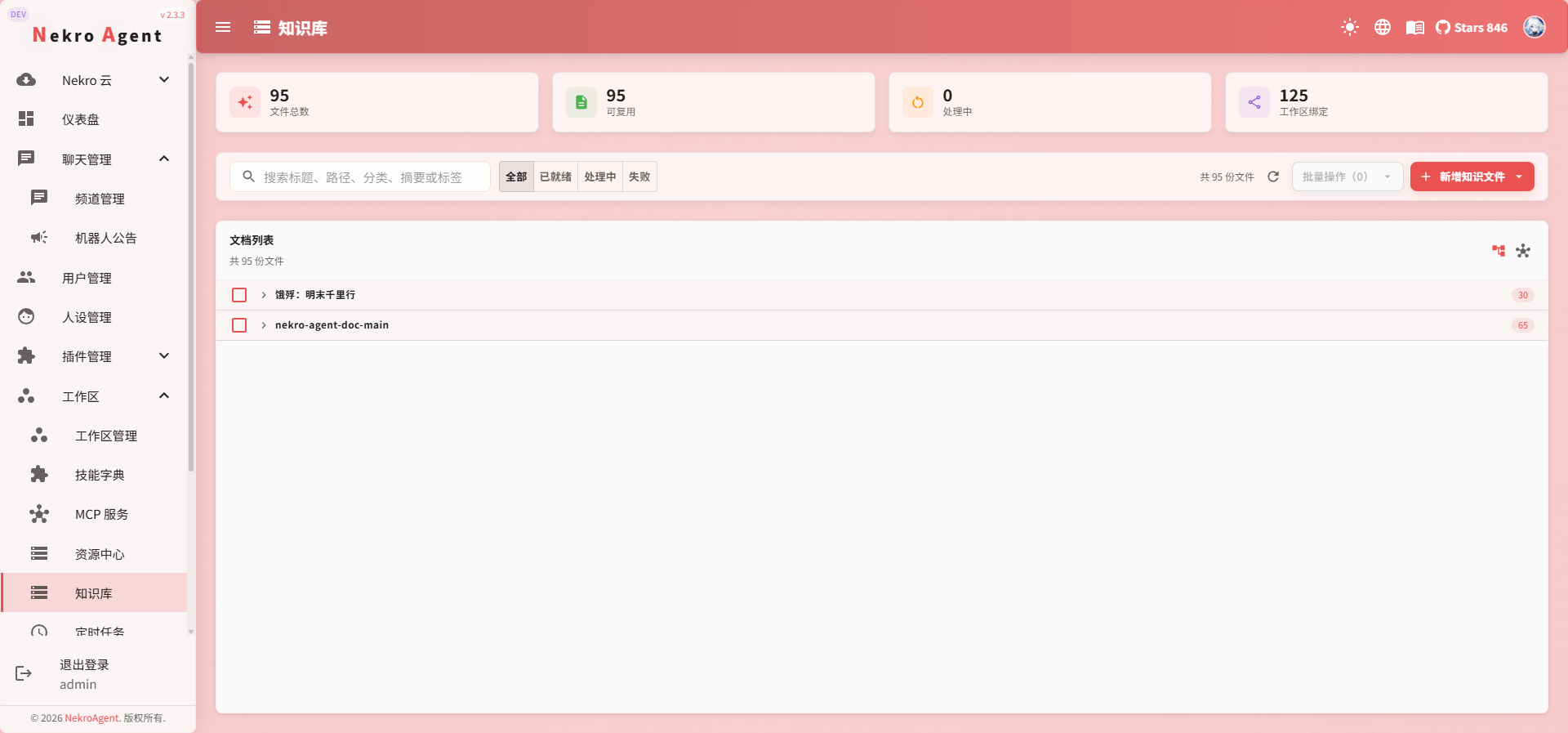
- Global Knowledge Base: View knowledge base files from all workspaces on the "Knowledge Base" page
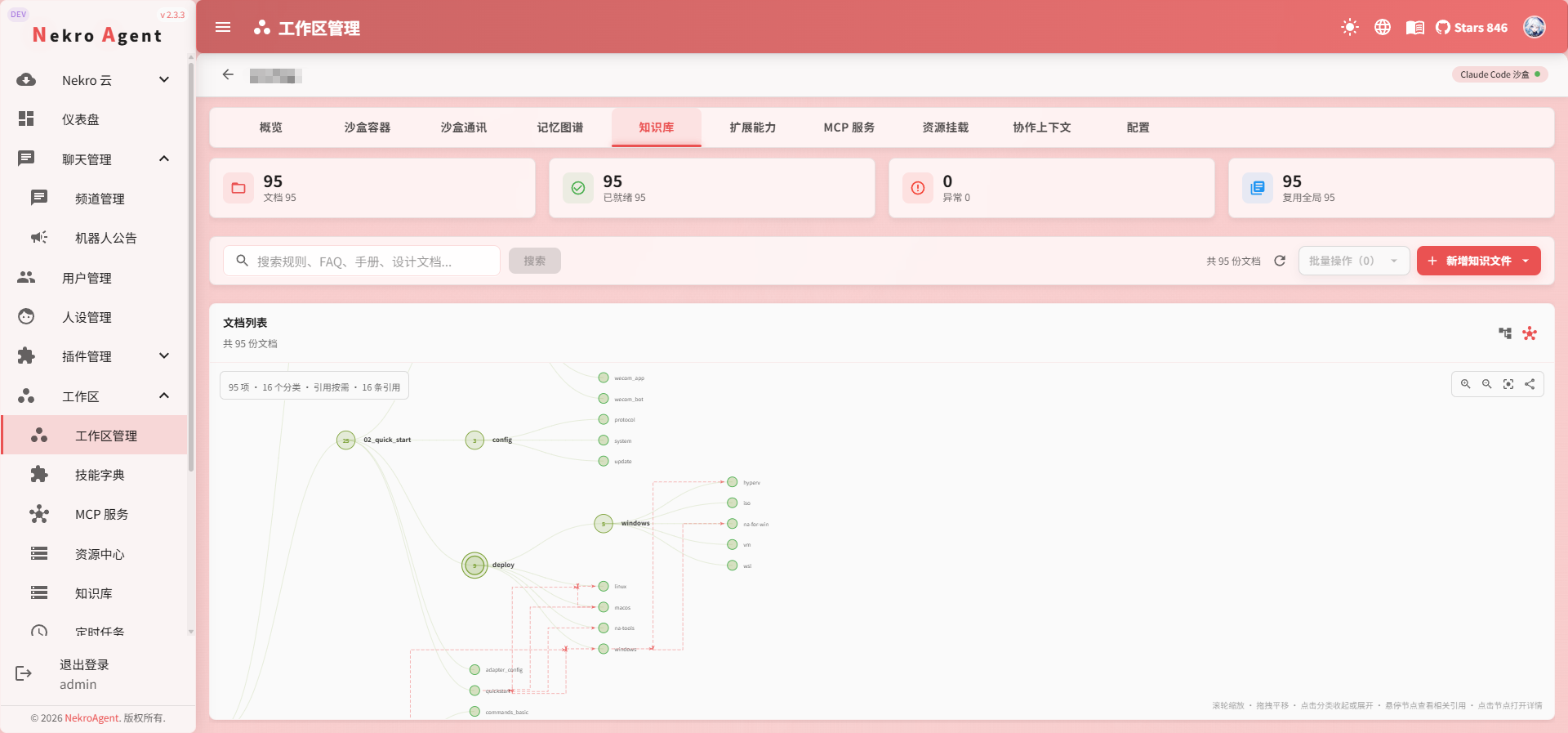
- Workspace Knowledge Base: After entering a workspace, manage the knowledge base files for that workspace
File and Reference Management
After uploading, knowledge base files go through a parsing, chunking, and vectorization process. Once processing is complete, the AI can reliably search for the corresponding content.
Common operations include:
| Operation | Description |
|---|---|
| Bind to Workspace | Allow the specified workspace to search this material |
| Unbind from Workspace | The material remains in the global knowledge base, but the current workspace no longer uses it |
| View References | See which workspaces or content reference the material |
| Rebuild Index | Regenerate the vector index when file content is updated or search results are abnormal |
| Delete File | Remove materials that are no longer needed; before deleting, confirm that no other workspaces depend on it |
If the same material will be reused across multiple projects, we recommend placing it in the global knowledge base first, then binding it to different workspaces as needed.
Supported File Types
The knowledge base is suitable for storing long-term stable text materials. Common formats include Markdown, TXT, PDF, DOCX, XLSX, and more. Different deployment environments may have slight variations in document parsing capabilities — please refer to the upload results on the page.
If a file fails to parse after uploading, you can try:
- Re-save the file as PDF or Markdown
- Split overly large documents
- Remove complex layouts, scanned image pages, or protected content
- Check the log center for parsing errors
Automatic Retrieval
When the AI processes tasks, it automatically determines whether it needs to query the knowledge base based on the current question and references relevant materials in its response.
You generally don't need to manually specify file names. As long as the materials are uploaded, processed, and bound to the current workspace, the AI can retrieve them when needed.
If you want to adjust the number of knowledge base entries the AI can view at each query, go to "Plugin Management" -> "Knowledge Base Tool" -> "Configuration" to modify the relevant options.
Usage Tips
- Upload early: You can start uploading materials right after creating a workspace — no need to wait until the CC Sandbox is configured
- Organize by workspace: Place materials for different projects in different workspaces to keep knowledge boundaries clear
- Continuously add content: You can add files to the knowledge base at any time; newly uploaded content will automatically complete vectorization
- Pay attention to chunking quality: If search results are not ideal, try splitting long documents by topic before uploading
- Check embedding configuration: If content cannot be found after uploading, prioritize checking the embedding model group and dimension configuration
Related Documentation
- Workspace Overview
- Memory System — Automatically accumulated dynamic memory, complementary to the knowledge base's static materials
- Claude Code Sandbox
- System Configuration — Embedding-related configuration details