Channel Management
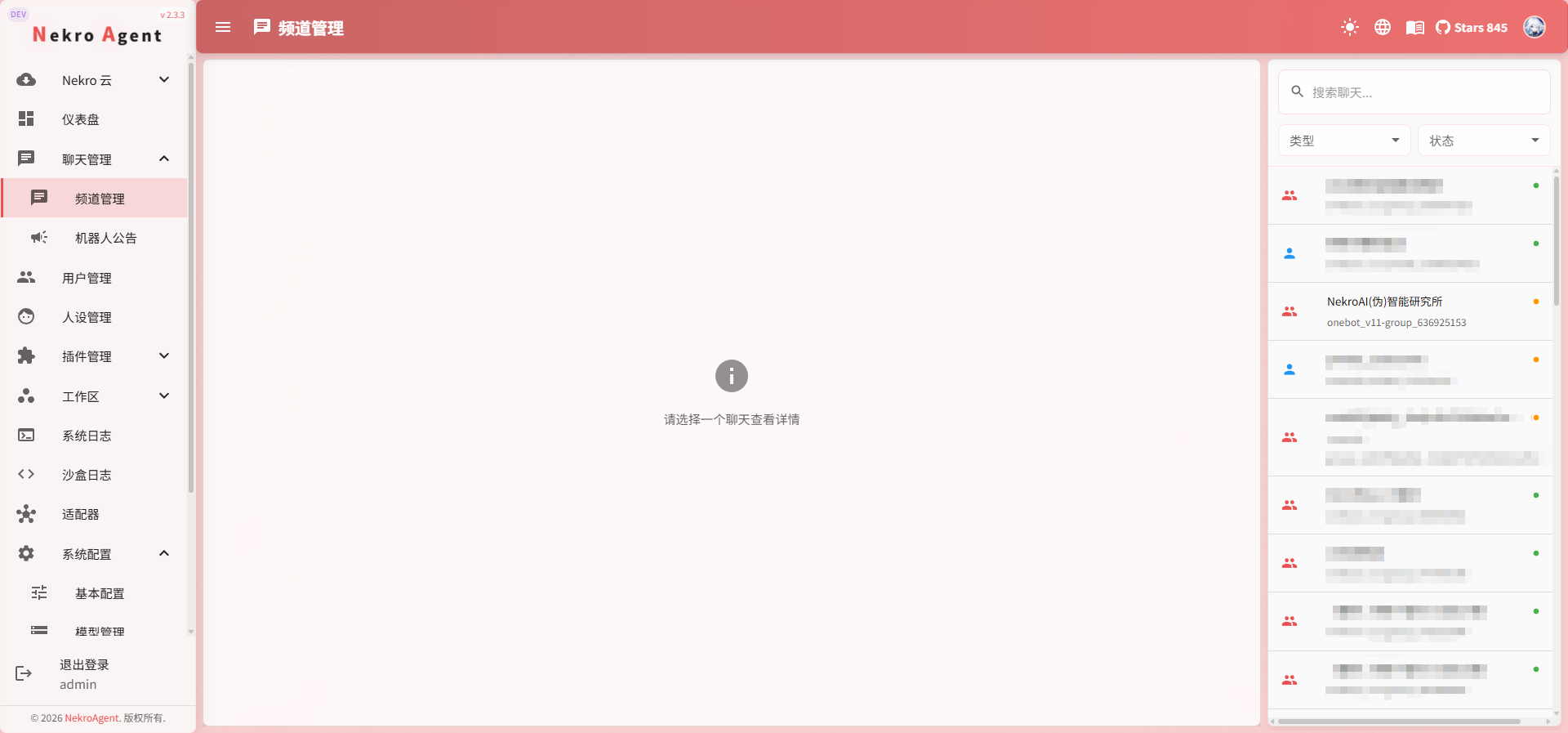
The Channel Management page is used to view and manage each chat channel.
If you want to know a channel's current status, which persona is bound to it, how recent messages look, or why it is not replying, this is usually the first place to check.
What This Page Can Do
In Channel Management, you can typically accomplish the following:
- View all channels
- Search for channels
- Filter by type and status
- View channel details
- Adjust channel status
- Reset the current channel's context
- View real-time messages
- View override configurations
- View plugin data for a channel
Three Common Channel States
Active
This is the normal working state.
In this state, the channel participates in triggering and replying according to normal rules.
Observer
This state preserves the channel record but bypasses the normal reply process.
It is more suitable for:
- Temporarily observing messages without letting the Agent reply
- Monitoring the channel situation first
- Debugging trigger issues
Disabled
In this state, the channel does not participate in normal usage.
If a channel should not be managed by the Agent for now, you can disable it directly.
When to Switch to Observer
Observer mode is typically suitable for the following situations:
- You want to collect messages first without having the Agent reply
- You suspect the channel's trigger rules have issues and want to observe first
- You do not want a channel to continue normal conversations but still want to keep the records
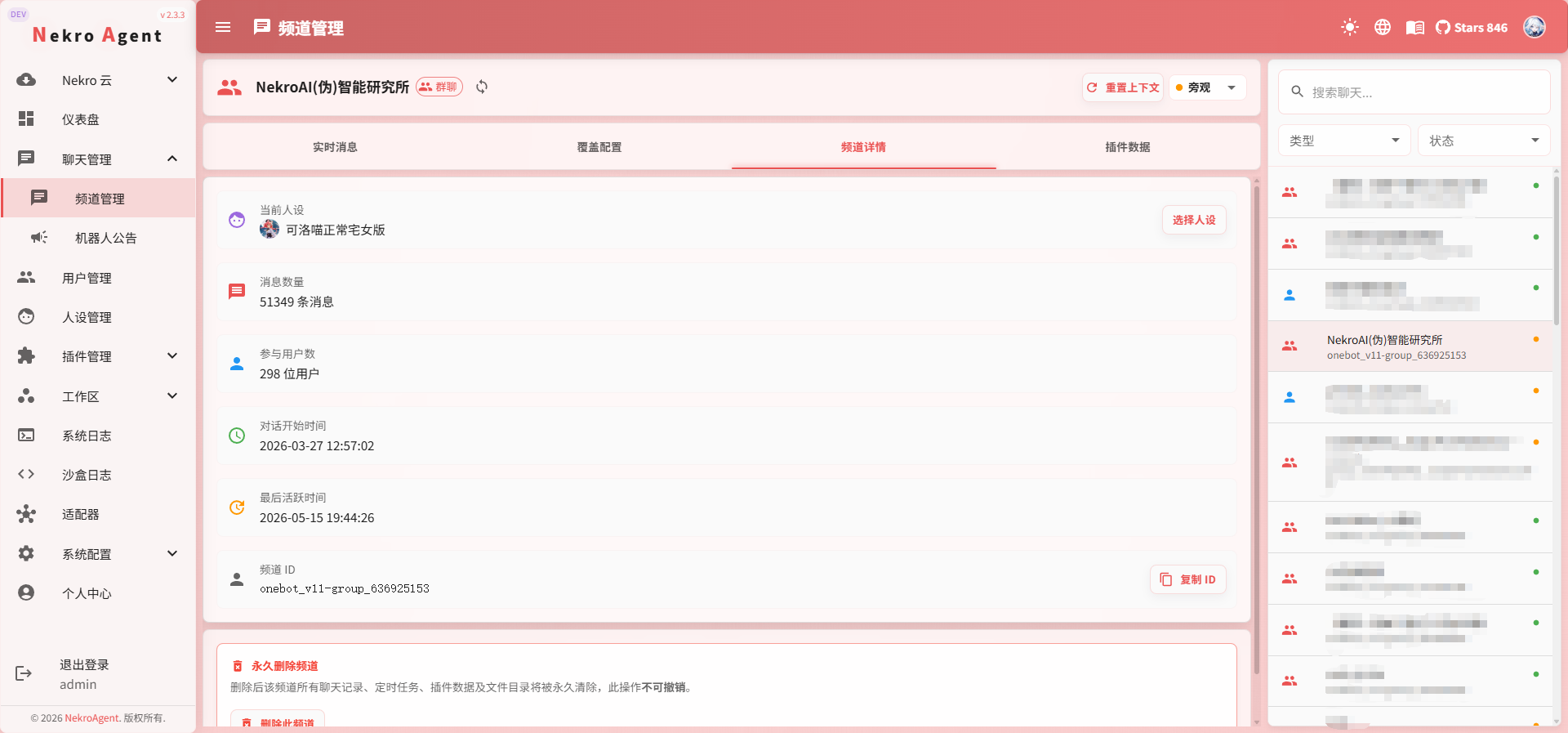
What You Can See in Channel Details
After clicking into a channel, the most important things to check first are:
- Current persona
- Message count
- Number of participating users
- Last active time
- Current channel status
What Is Override Configuration For
Override configuration only applies to the current channel.
It is suitable for:
- A channel that needs an individual setting changed
- Not wanting to affect the global configuration
- Wanting to run a small-scale test
When to Use the Real-Time Messages Page
The real-time messages page is more suitable for troubleshooting:
- Whether messages are coming in
- Who sent the messages
- Whether replies were actually sent out
- Whether the channel is receiving system messages or plugin output
When to Use the Plugin Data Page
If a channel issue is related to a plugin, you can check the plugin data stored for that channel on the Plugin Data page.
This is more suitable for:
- Troubleshooting abnormal plugin states
- Viewing what a plugin has stored for a specific channel
- Deleting leftover test data
Usage Recommendations
- When a channel is not replying, first check whether the status has been switched to Observer or Disabled
- For single-channel issues, check the override configuration first
- For plugin issues, check the plugin data for that channel