
Workspace Timers
Depends on CC Sandbox: No
Must be bound to a workspace: No
Timers let AI work proactively instead of waiting for you to send a message.
Once a timer is set up, the AI will automatically execute tasks according to your schedule — sending a news digest every morning, generating a weekly project report, checking system status every hour. When a timer triggers, the AI understands the task description and executes autonomously, not simply running a fixed script.
Flexible Usage
Timers do not depend on the Claude Code Sandbox, nor do they require binding to a workspace. You can use timers independently for simple reminders, or combine them with the CC Sandbox in a workspace to implement complex automated workflows.
What Timers Can Do
Automated Reminders
- "Remind me to check my email every day at 9 AM"
- "Remind me to submit my weekly report every Friday afternoon"
- "Remind me to reply to that message in 5 minutes"
Periodic Tasks
- Daily news/information digest
- Weekly project progress report
- Periodic data backup reminders
- Automated holiday greetings
Automation Combined with CC Sandbox (Within Workspaces)
When timers are used together with the CC Sandbox in a workspace, capabilities are further expanded:
- Automatically crawl specified websites and generate summaries daily
- Automatically run tests and send reports weekly
- Check monitoring data every hour and alert on anomalies
- Periodically organize and archive files
Timer Types
One-Time Timer
Triggers once at the specified time and then automatically completes. Suitable for temporary reminders and single tasks.
Common expressions:
- "Remind me to reply to that message in 5 minutes"
- "Remind me to check the deployment results tonight at 8 PM"
- "Remind me to submit the report next Wednesday at 3 PM"
Recurring Timer (Cron)
Repeats on a schedule, suitable for long-term automated tasks.
Recurring timers support:
- Defining schedules using standard cron expressions
- Pause, resume, and immediate execution
- Filtering trigger times by workday or holiday
Creating Timers
Create Directly in Conversation
The simplest way — just tell the AI what scheduled task you need:
- "Remind me to check my email every morning at 9 AM"
- "Remind me to reply to that message in 5 minutes"
- "Generate a weekly report summary every Monday at 10 AM"
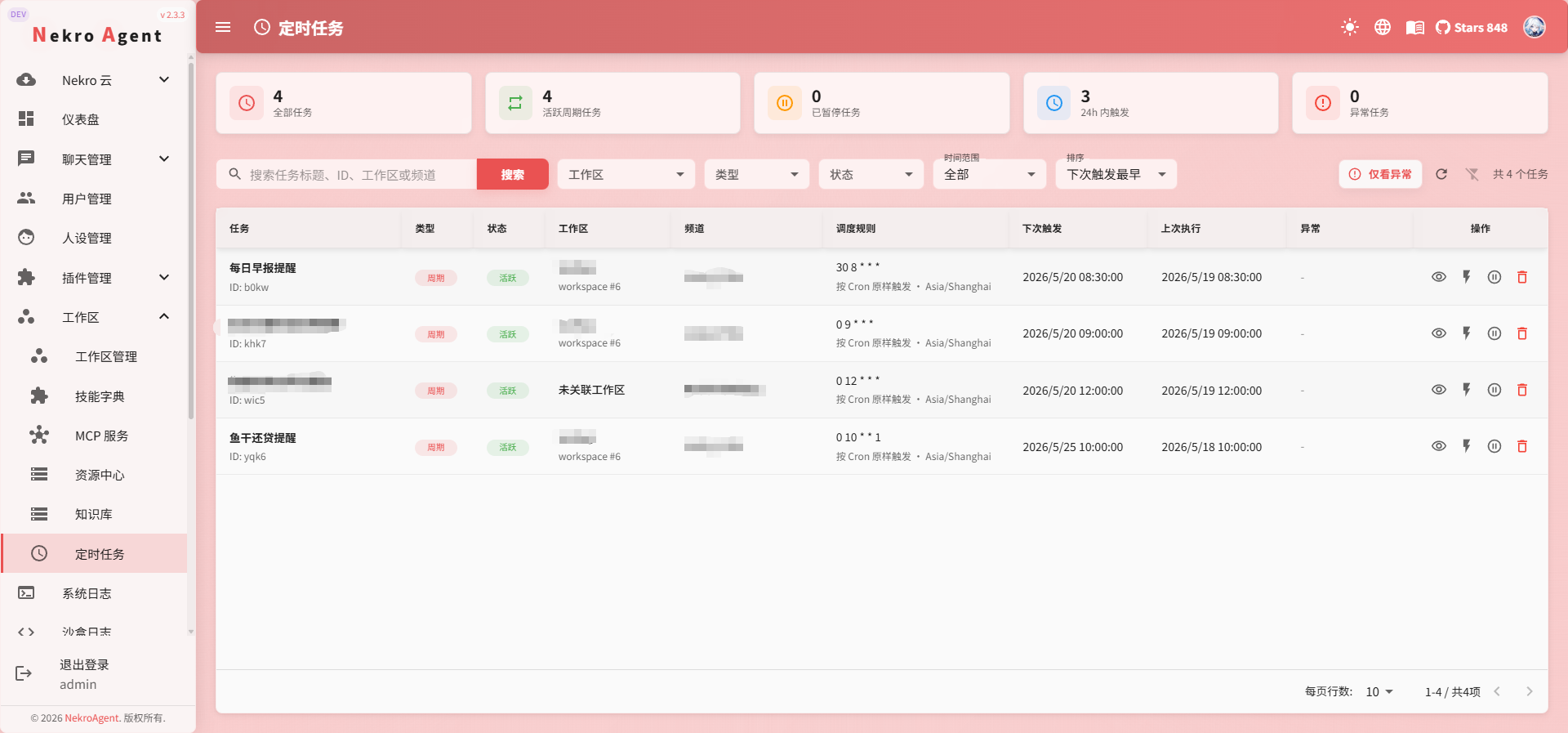
The AI will create an appropriate timer based on your description. After creation, you can view and manage it in the WebUI timer list.
Developer Creation
If you're developing a plugin, you can also create scheduled tasks within the plugin. See Plugin Timer Development for details.
Cron Expressions
Recurring timers use standard 5-field cron expressions:
minute hour day month weekdayCommon examples:
| Expression | Description |
|---|---|
0 9 * * * | Every day at 9:00 AM |
30 8 * * 1-5 | Monday through Friday at 8:30 AM |
0 */2 * * * | Every 2 hours |
0 9 1 * * | 1st of every month at 9:00 AM |
0 10 * * 1 | Every Monday at 10:00 AM |
Workday Mode
On top of cron expressions, you can further filter by workday:
| Value | Description |
|---|---|
none | No restriction; triggers normally per cron |
mon_fri | Monday through Friday only |
weekend | Weekends only |
cn_workday | Chinese statutory workdays only (including adjusted workdays) |
cn_restday | Chinese statutory holidays only (including adjusted holidays) |
Timer Management
In the WebUI timer list, you can perform the following operations on existing timers:
- View Details: Cron expression, next trigger time, bound channel
- Execute Now: Manually trigger once
- Pause / Resume: Temporarily stop or resume automatic triggering
- Delete: Permanently remove
WebUI Capabilities
The current version of the WebUI provides timer viewing and management functions. Timer creation is done through AI conversation or plugin code.
Trigger Behavior
When a timer triggers, the system pushes the event description to the AI, which understands the context and makes autonomous decisions about execution. This means:
- Timer behavior is not a fixed script but intelligent execution by the AI based on the event description and current context
- The more specific the event description, the better the AI's execution
- If the workspace has the memory system and CC Sandbox enabled, the AI can also leverage long-term memory and code execution capabilities to complete more complex scheduled tasks
Usage Tips
- Start simple: Try a daily reminder first to experience the timer's effect
- Be specific in descriptions: "Remind me of today's to-do items at 9 AM every day" works much better than "remind me every day"
- Combine with workspaces: Bind timers to workspaces and combine with the knowledge base and memory system so the AI has richer context when executing scheduled tasks
- Leverage workday mode: The Chinese statutory workday mode is especially useful for handling adjusted workdays
Related Documentation
- Workspace Overview
- Claude Code Sandbox — Scheduled tasks + CC Sandbox = powerful automation capabilities
- Memory System — Give scheduled tasks context
- Plugin Timer Development — Developer reference