
Workspace Overview
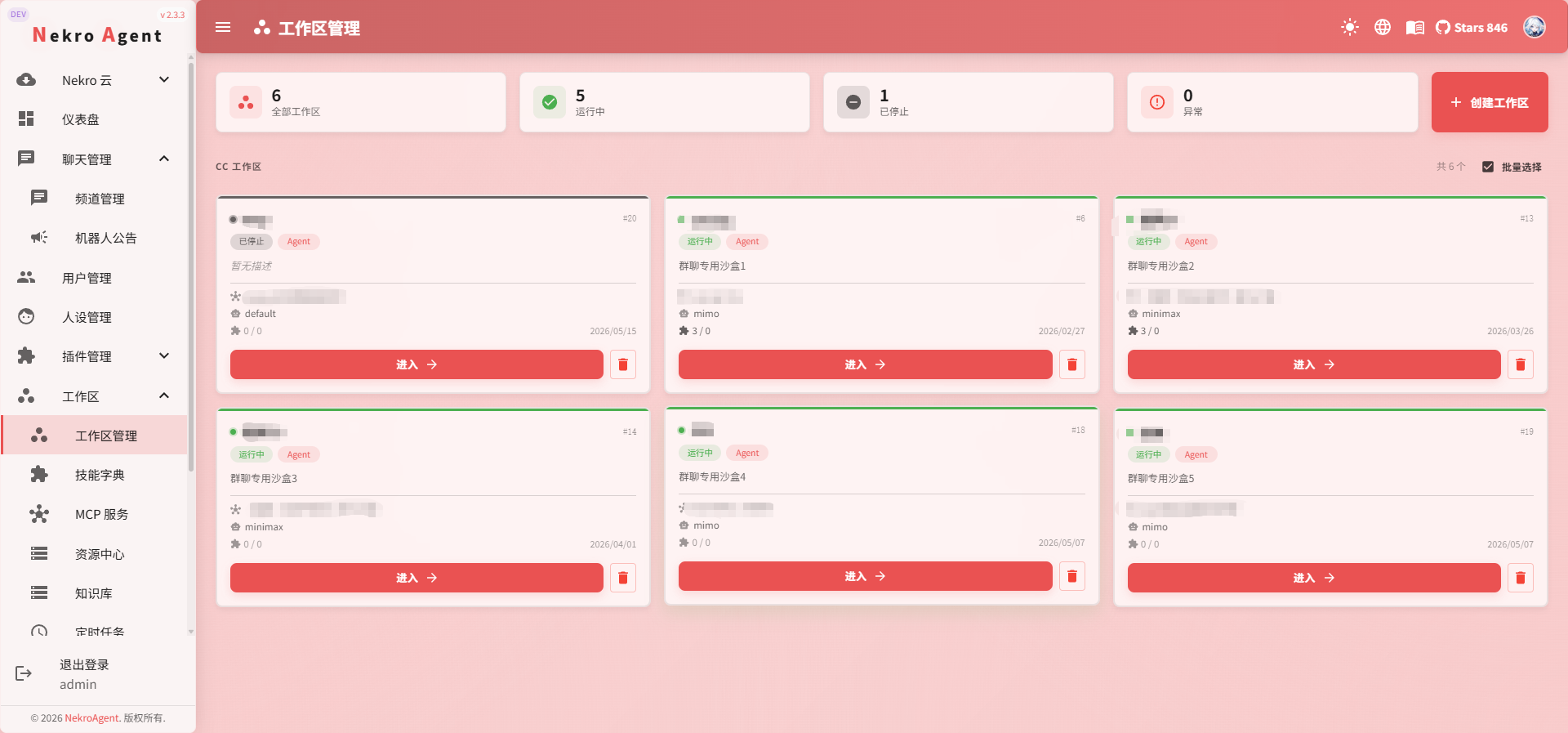
The workspace is the most fundamental organizational unit of Nekro Agent's capabilities.
Feature List
| Feature | What It Does |
|---|---|
| Claude Code Sandbox | Execute code, process files, generate reports, complete complex tasks |
| Knowledge Base | Upload documents and materials so the AI can answer questions based on your resources |
| Memory System | Record long-term context, preferences, and project status to reduce repetitive explanations |
| Resource Center | Manage servers, databases, tokens, and other resources, mounting them to workspaces as needed |
| MCP Services | Connect external tools and services to extend workspace capabilities |
| Workspace Timers | Scheduled reminders, periodic inspections, and automated execution of recurring tasks |
| Prompts & Skills | Set long-term requirements and specialized capabilities for the workspace |
| Communications & Extensions | View associated records, manage extension capabilities and workspace configurations |
Recommended Workflow
We recommend reading and configuring in the order of Deployment -> Plugins -> Workspace Overview: complete basic deployment first, then understand plugin capabilities, and finally create a workspace to host long-term tasks.
When you need the AI to do more than just chat — to actually help you get things done — organizing materials, analyzing data, writing reports, tracking projects, performing periodic inspections — the workspace is where all of this happens.
A workspace brings together the AI execution environment (Claude Code Sandbox), knowledge base, long-term memory, external tools (MCP), and scheduled tasks around a shared objective, working continuously toward the same goal. Conversations in channels are no longer one-off Q&A sessions but an ongoing project space.
What Workspaces Bring
From "Chatting" to "Getting Things Done"
Without a workspace, the AI can only answer questions in conversation. With a workspace, the AI can:
- Write and execute code in the Claude Code Sandbox, process files, and generate reports
- Connect to external tools and data sources through MCP services
- Automatically remember what was discussed and what was done before
- Automatically execute periodic tasks according to your schedule
Isolated Task Spaces
Each workspace is independent. The knowledge, memory, and tool configurations of different projects do not interfere with each other. You can run a "Data Analysis" workspace and a "Content Creation" workspace simultaneously, each maintaining its own context and capabilities.
Gets Better Over Time
The memory system in the workspace continuously extracts key information from conversations and tasks. The longer you use it, the deeper the AI understands your project, and the less frequently you need to re-explain context.
Workspace Capability Components
| Capability | Function | Depends on CC Sandbox |
|---|---|---|
| Claude Code Sandbox | Core engine for code execution, file processing, and complex tasks | — |
| Knowledge Base | Upload documents; AI automatically retrieves and references them | No |
| Memory System | Automatically extracts and retains long-term context; gets smarter with use | No |
| Resource Center | Manage reusable servers, databases, tokens, and other resources; mount to workspaces as needed | Required for Claude Code usage |
| Timers | Let AI execute tasks on schedule | No |
| CC Model Group | Independently configure models for the Claude Code Sandbox | — |
| Prompts & Skills | Workspace-level behavior customization and capability configuration | No |
Recommendation
We recommend creating an independent workspace for each actively used channel. Even if you don't need the Claude Code Sandbox right away, the knowledge base and memory system can significantly improve AI performance.
Workspace Detail Page
After entering a workspace, you can manage its capabilities through different tabs:
| Tab | Purpose |
|---|---|
| Overview | View basic workspace status and main capability entry points |
| Sandbox | Manage the Claude Code Sandbox and task execution environment |
| Communications | View associated channels, conversations, and task records |
| Memory | Manage workspace long-term memory |
| Knowledge Base | Upload, bind, and search workspace materials |
| Extensions | Manage extension capabilities related to the workspace |
| MCP | Configure MCP services available to the workspace |
| Resources | Mount servers, databases, tokens, and other resources |
| Prompts | Set long-term requirements and behavior preferences for the workspace |
| Configuration | Adjust basic workspace parameters and runtime options |
When using for the first time, you don't need to configure all tabs at once. We recommend starting with basic information, knowledge base, or memory, then enabling the sandbox, MCP, resources, and skills as needed for your tasks.
Typical Use Cases
Project Management Assistant
Create a workspace, upload project documents to the knowledge base, and bind a project discussion channel. The AI will remember project progress, and you can ask it to periodically generate progress reports and track to-do items.
Data Analysis Workbench
Create a workspace and enable the Claude Code Sandbox. Simply send data files to the AI, and it can analyze data with Python in the sandbox, generate charts, and send the result files back to you.
Automated Operations
Create a workspace, configure MCP services to connect to your monitoring system, and set up a timer to check every hour. The AI will automatically perform inspections and notify you when anomalies are detected.
Knowledge Management Center
Create a workspace and continuously upload team documents to the knowledge base. Any member asking questions in the channel will receive accurate answers from the AI based on the knowledge base.
Long-Term Companion
Create a workspace and enable the memory system. The AI will remember your conversations, preferences, and habits, providing a chat experience far beyond ordinary conversations.
Getting Started
Before using workspaces, we recommend completing the prerequisites:
- Quick Deployment — Get Nekro Agent up and running first
- Plugin Documentation — Understand what plugins can extend, and enable the necessary ones first
- Workspace Overview — Then create a workspace to host long-term tasks
For more on workspace features, continue reading:
- Quick Start — Build your first workspace in five steps
- Claude Code Sandbox — Unleash the AI's execution capabilities
- Knowledge Base — Let the AI master your professional materials
- Memory System — Let the AI get to know you better over time
- MCP Service Management — Connect external tools
- Resource Center — Manage and mount reusable credentials and connection information
- Workspace Timers — Implement automated workflows
- Skills Library — Add specialized capabilities to Claude Code