Email Adapter
This page does not teach you how to connect an email account. Instead, it explains how to view and use email within Nekro Agent after the email account has been connected.
If you have not yet completed email account setup, refer to:
What This Page Can Do
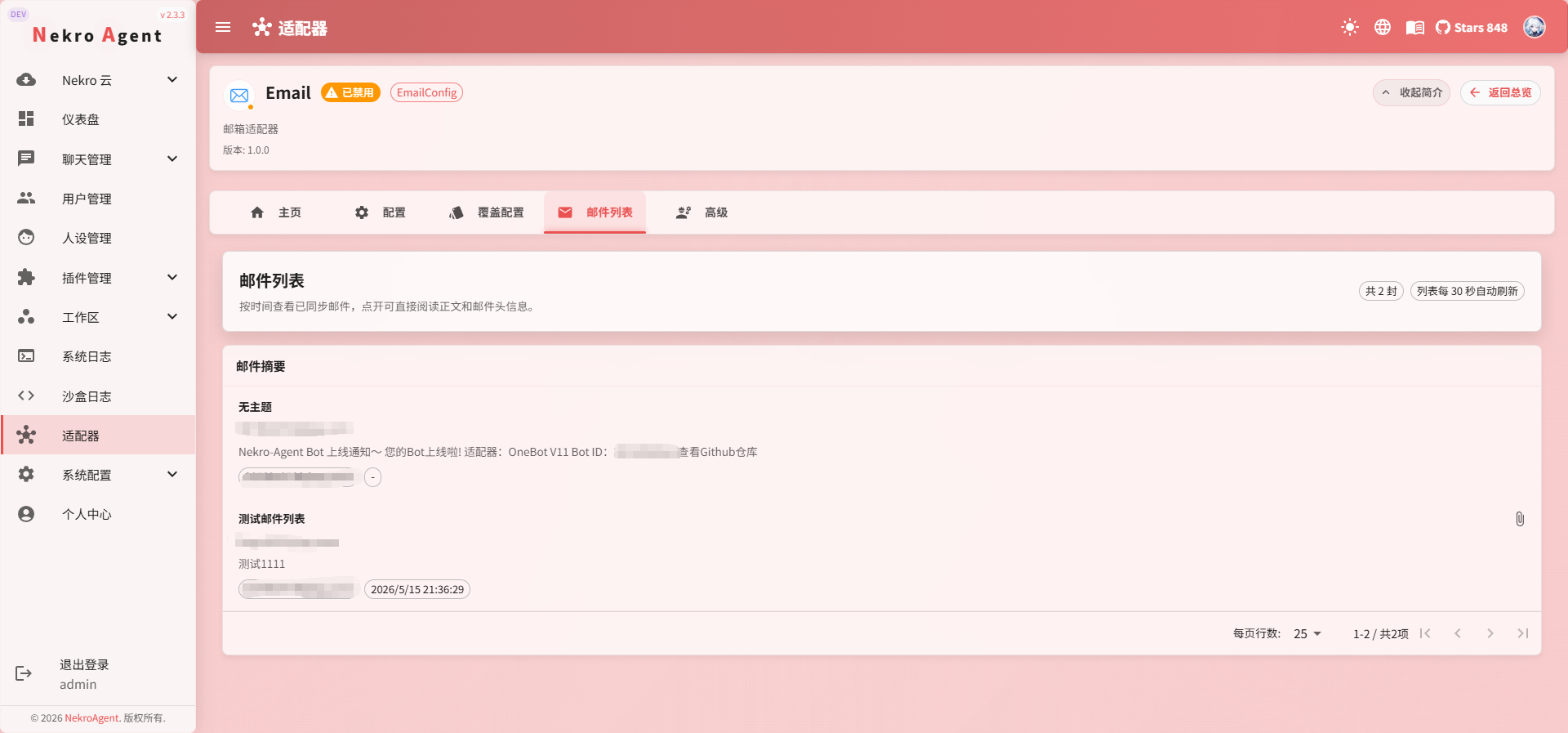
After the Email Adapter is connected, Nekro Agent organizes received emails into a dedicated page. You can think of it as an email overview page, used to first confirm "whether emails have been received."
The current page is mainly used for:
- Viewing the list of received emails
- Distinguishing email sources by email account
- Quickly viewing the subject, sender, and time
- Checking whether emails have attachments
- Helping confirm whether polling is working correctly
What You Typically See on the Page
In the current version, the email list typically displays the following information:
- Email subject
- Sender
- Associated email account
- Email time
- Whether it has attachments
If you have configured multiple email accounts, emails received by all of them will be listed here in a unified view.
Difference from the Email Chat Session
The email list page is more of an overview entry point, suitable for first checking whether emails have arrived, which account they came from, and whether they have attachments.
The Email chat session is more suitable for continuing to process a specific email, such as having the AI summarize the email content, draft a reply based on the email, or use plugins to handle attachments.
After configuration, the Email chat identifier typically looks like this:
email-your-email-addressFor example:
email-123456@qq.comWhere Do New Email Notifications Go
If you enabled Enable New Email Notifications in the Email configuration, you also need to fill in the New Email Notification Chat Channel.
This field takes a chat identifier, for example:
onebot_v11-group_group-numberThis means Email can send "new email received" notifications to other connected platforms, such as QQ groups, Telegram groups, or custom SSE clients.
When configuring notifications for the first time, it is recommended to copy the real chat identifier from the WebUI or logs.
Where Are Attachments
Email attachments are saved to the data directory at:
data/uploads/email_attachment/{email-account}/{email-UID}/{attachment-filename}This page mainly helps you determine whether an email has attachments. If you need to further process attachments, you will typically need to continue in a chat session or through plugin capabilities.
When to Use This Page
The following situations are typically suitable for visiting this page:
- You want to confirm whether new emails have been received normally
- You want to quickly scan recent emails
- You want to find out what a specific account has received recently
- You want to check which emails have attachments
- You just changed the polling configuration and want to see if it has taken effect
Usage Recommendations
- If you are mainly monitoring notifications and attachments, check the latest time and attachment indicators first
- If no new emails appear here for an extended period, go back and check the Email Adapter configuration and polling status first
- If you just want to confirm whether the connection is working, send a simple test email to the mailbox
Frequently Asked Questions
Email is configured, but no emails appear here
Check the following in order:
- Whether the Email Adapter has been enabled and restarted
- Whether
Enable Accountis turned on in the email account list - Whether IMAP has been enabled in the email provider's backend
- Whether the authorization code or app-specific password is valid
- Whether the polling interval is set too long
- When
Only Fetch Unreadis enabled, whether there are actually unread emails in the mailbox
Emails are received, but notifications are not sent
Check the following in order:
- Whether
Enable New Email Notificationsis turned on - Whether
New Email Notification Chat Channelcontains a valid, existing chat identifier - Whether the target platform adapter has been properly connected
- Whether the target group or channel allows the bot to send messages
Emails are received, but attachment content cannot be viewed
This page is primarily a list view. It is more suitable for determining whether attachments exist, rather than directly viewing or processing attachment content.