Quick Start
This guide walks you through creating your first workspace in five minutes and getting the Claude Code Sandbox up and running.
When you're done, you'll have an AI workspace that can execute code, process files, and continuously work on tasks.
Prerequisites
- Nekro Agent is deployed and the WebUI is accessible
- At least one activated chat channel
- The main conversation model group is configured (AI can chat normally)
Step 1: Create a Workspace
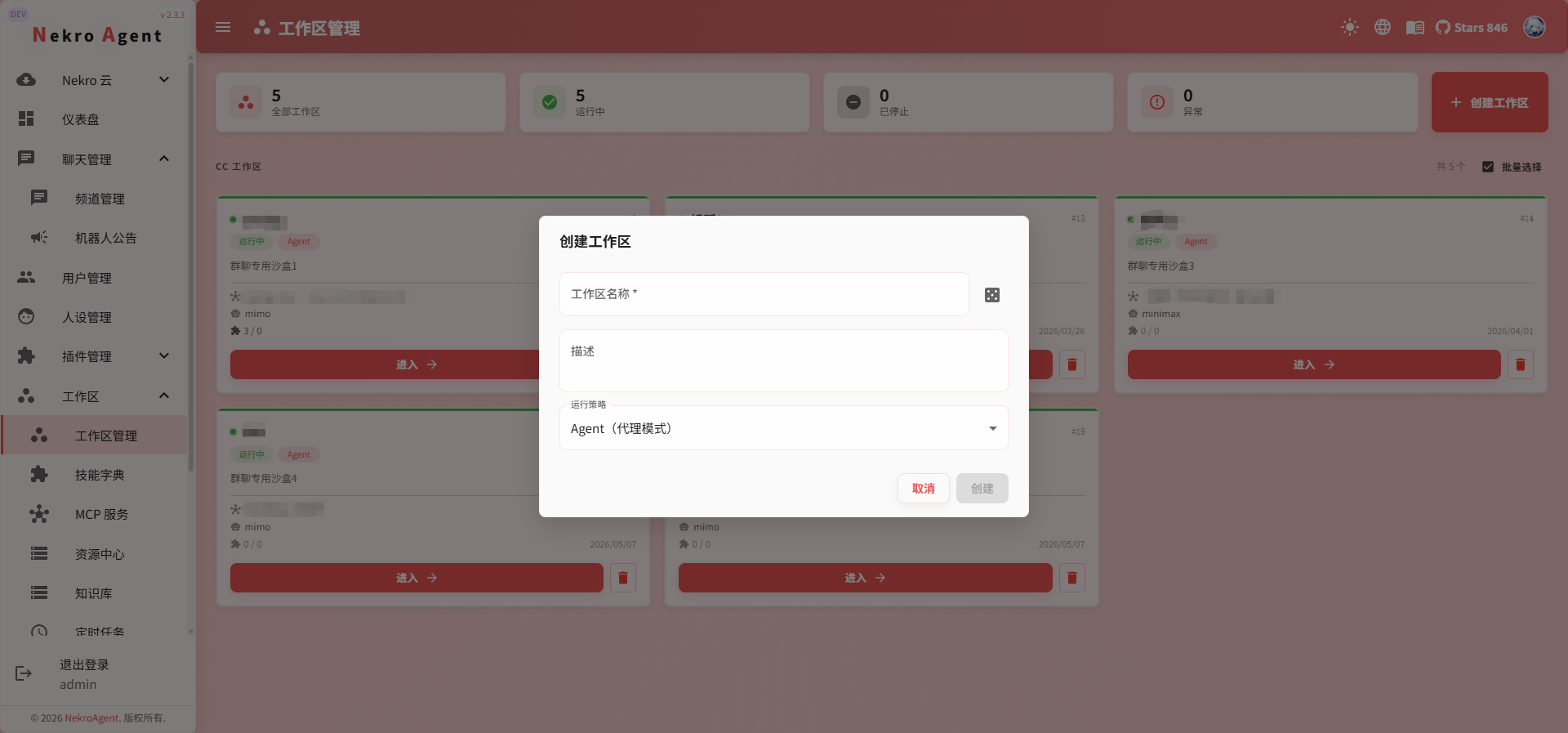
Navigate to the "Workspace" page in the WebUI and click Create.
For the name, we recommend using a descriptive label based on its purpose, such as Data Analysis, Project A, or Daily Assistant.
Step 2: Bind a Channel
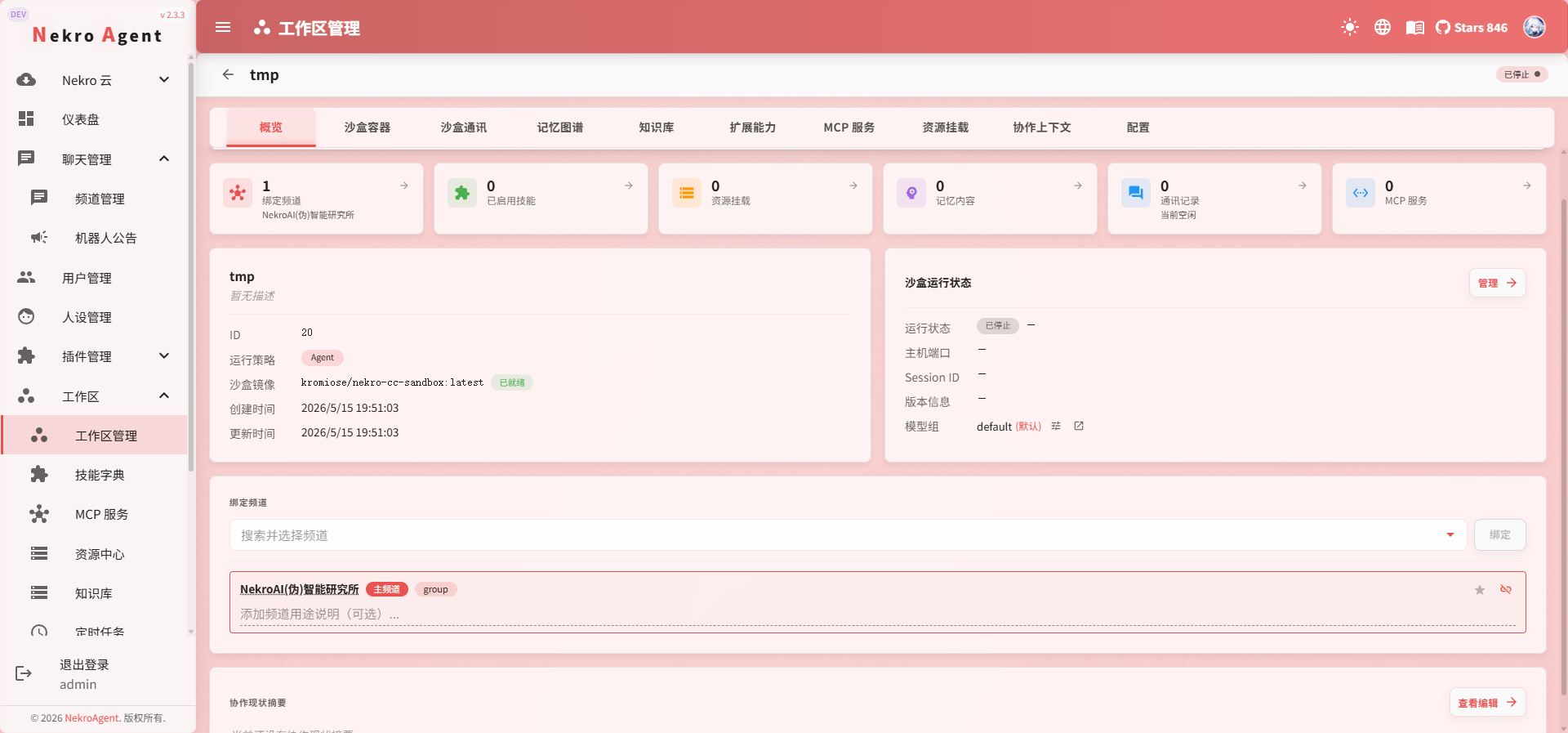
Bind the channel you want to use to the workspace. Once bound, conversations and tasks in that channel will automatically use the workspace's configuration.
We recommend one channel per workspace to keep contexts clear.
Step 3: Configure the CC Model Group
Key Step
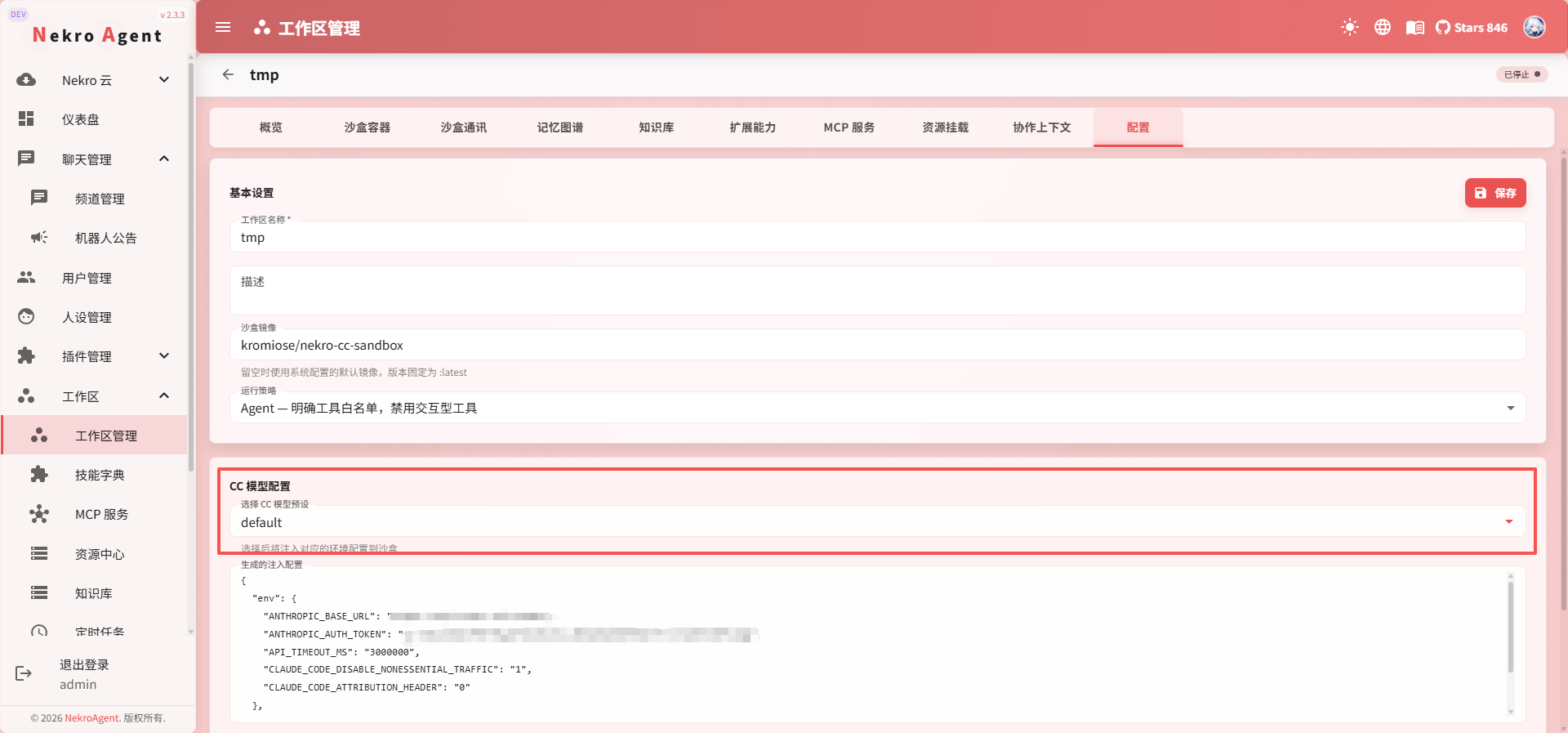
This is the most commonly missed step. The Claude Code Sandbox uses its own CC Model Group, which does not inherit the main conversation model. Even if the main Agent can already chat normally, the Claude Code instance in the workspace needs a separately configured model to work.
Navigate to "System Configuration" -> "Model Management" -> "CC Model Group" to configure an available model, then select it in the workspace settings.
For quick onboarding, the system comes with a preset CC Model Group configuration from NekroAI Proxy. You can visit NekroAI Proxy to register an account and create an API Key, then paste it into the "API Key" field of the CC Model Group; the endpoint and model name can use the preset values for now.
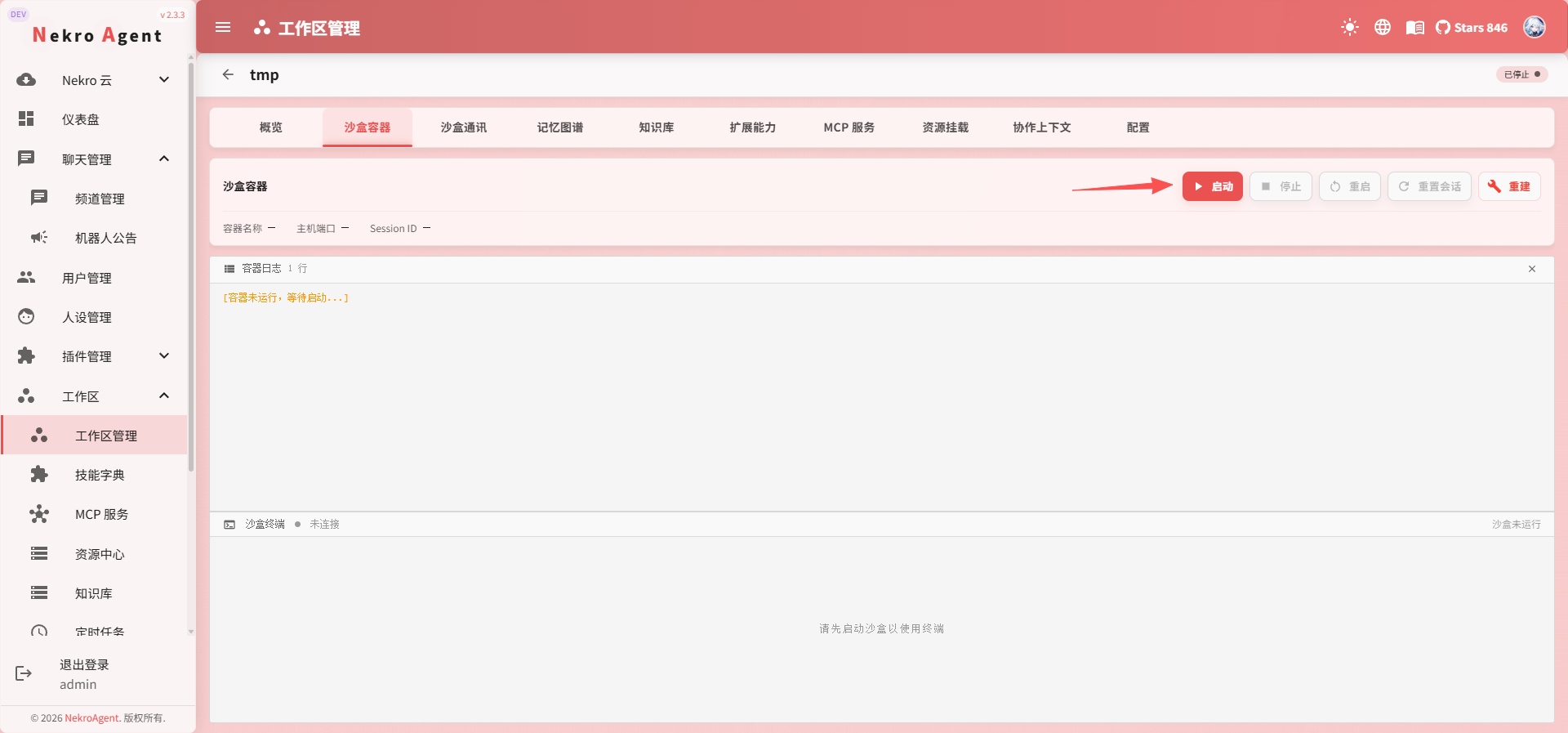
Step 4: Start the Claude Code Sandbox
Start the Claude Code Sandbox from the workspace detail page.
The first startup may require pulling a Docker image — just follow the on-screen prompts. Once the image is ready, the sandbox will start within a few seconds.
Step 5: Try Your First Task
Go back to the bound channel and give the AI a real task to try:
- "Write a Python script that counts the frequency of each word in a given text"
- "Analyze the content of this image"
- "Generate a template for a weekly work summary"
If the AI can execute code and return results normally, your workspace is ready.
Try Something More Complex
The real value of a workspace lies in handling complex tasks. Try giving the AI a multi-step task, such as "Analyze this data and generate visualization charts" or "Organize these files and produce a summary report."
Troubleshooting
Main conversation works, but Claude Code does not
99% of the time, this is because the CC Model Group is not configured. Go back to Step 3 to check.
Sandbox fails to start
Check whether the Docker image has been pulled successfully. If your network is restricted, you can configure a Docker registry mirror.
Tasks and context are confused
Make sure the channel is bound to the correct workspace. Channels with different purposes should not share the same workspace.
Next Steps
Once the workspace is running, we recommend exploring:
- Claude Code Sandbox — Learn about the full capabilities of the sandbox
- Knowledge Base — Upload documents to make the AI a domain expert
- Memory System — Enable long-term memory so the AI improves with use
- MCP Service Management — Connect external tools to extend capabilities
- Resource Center — Manage reusable servers, databases, tokens, and other resources
- Workspace Timers — Set up automated tasks