
Claude Code Sandbox
Depends on CC Sandbox: Yes
Must be bound to a workspace: Yes
The Claude Code Sandbox (CC Sandbox) is the core execution engine of the workspace.
Without it, the AI can only chat; with it, the AI can write code, run scripts, process files, operate browsers, and connect to external services. If the workspace is the AI's office, the CC Sandbox is the computer on the desk.
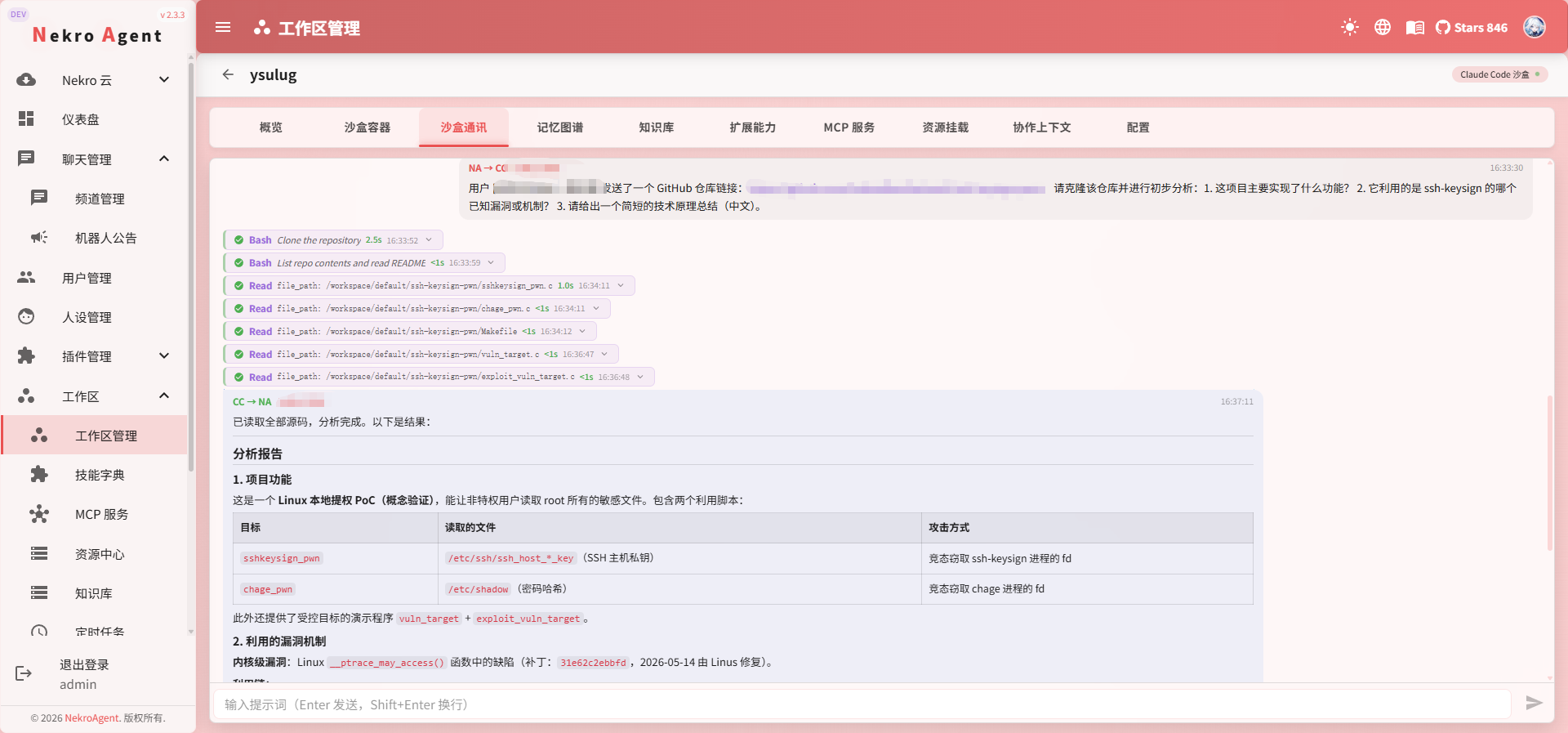
Each workspace has its own independent CC Sandbox instance, running in an isolated Docker container. Tasks are executed asynchronously in the background, and results are automatically pushed back to the conversation upon completion.
Independent Model Configuration
The CC Sandbox uses its own CC Model Group, which does not inherit the main conversation model. Even if the main Agent can already chat normally, the CC Sandbox needs a separately configured model to work. See CC Model Group for details. This is the most common source of issues.
What the Sandbox Can Do
Programming and Code Execution
The sandbox comes pre-installed with a complete development environment:
| Tool | Version | Purpose |
|---|---|---|
| Python | 3.13 | Data analysis, scripting, automation |
| Node.js | 20 | Web development, toolchains |
| git | — | Version control |
| gh | — | GitHub CLI for creating PRs and managing Issues |
| uv | — | Python package management (recommended replacement for pip) |
| npm | — | Node.js package management |
| curl / wget | — | HTTP requests |
| jq | — | JSON processing |
| ssh | — | Remote connections |
You don't need to install these tools yourself — they are ready to go when the sandbox starts.
Browser Automation
The sandbox includes agent-browser (based on Playwright + Chromium), which can open web pages, take screenshots, and extract information. The AI can use it to:
- View web pages and extract content
- Capture web page screenshots
- Automate form filling
File Processing
The AI can process files directly in the sandbox:
- Read, create, and edit files
- Images and files sent in conversation can be uploaded to the sandbox
- Files produced by the sandbox are automatically returned to you via a shared directory
- Supports generating charts, reports, patches, archives, and other formats
External Tool Integration
Through MCP Services, the sandbox can connect to external tools and data sources for further capability expansion.
Typical Use Cases
| Scenario | Example |
|---|---|
| Data Analysis | "Analyze this CSV data and generate trend charts" |
| Code Development | "Write a FastAPI endpoint for user registration logic" |
| File Conversion | "Convert these Markdown files to HTML" |
| Information Gathering | "Open this web page and extract all product pricing information" |
| Report Generation | "Generate a weekly report based on this data" |
| GitHub Operations | "Create a PR in this repository to fix the login page styling issue" |
| Project Scaffolding | "Initialize a React + TypeScript project for me" |
| Batch Processing | "Rename these files and organize them by date" |
Getting Started
- Create a workspace and bind a channel
- Configure a CC Model Group (add one under "System Configuration" -> "Model Management")
- Select the CC Model Group in the workspace
- Start the CC Sandbox
- Send a task to the AI in the channel
How Tasks Are Executed
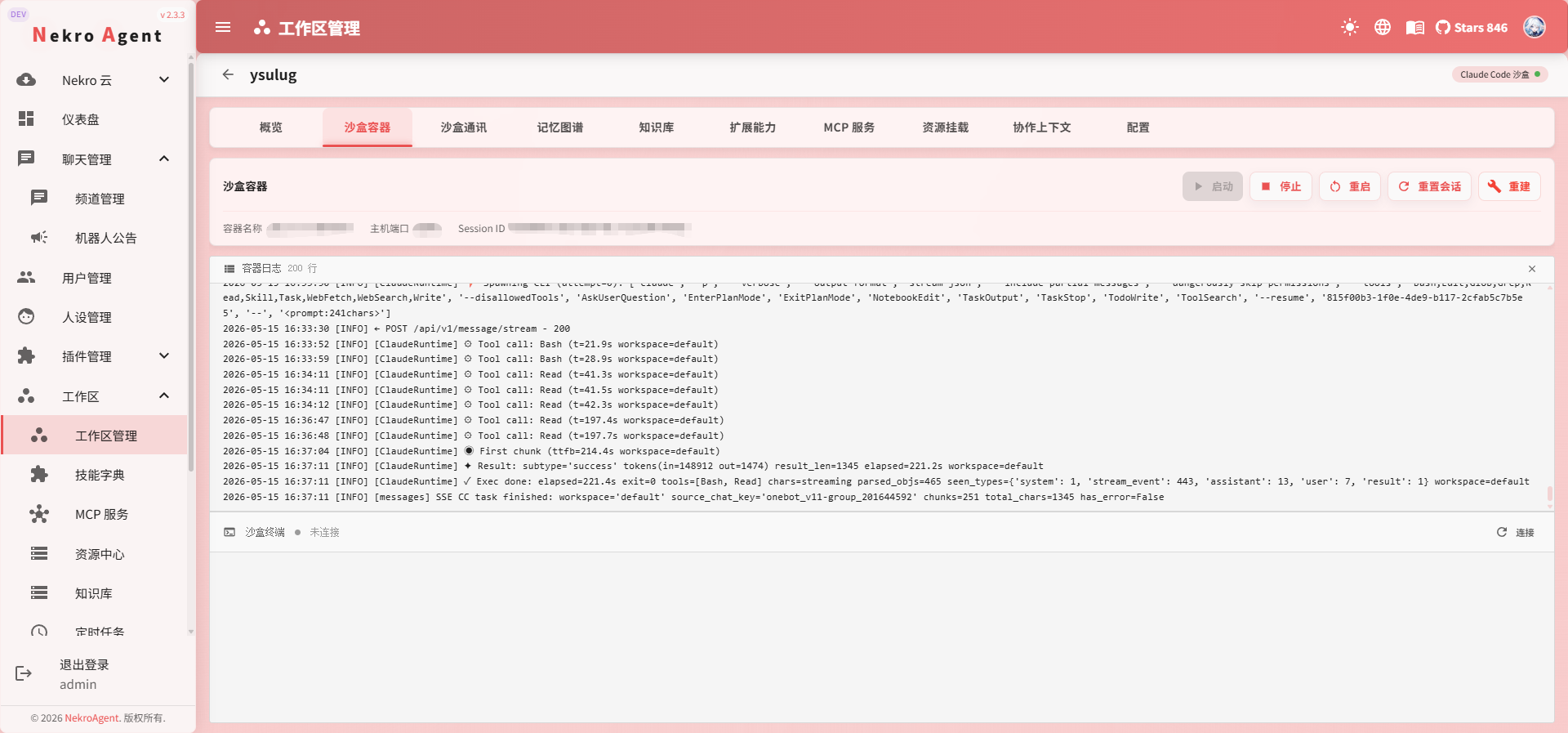
The CC Sandbox uses an asynchronous delegation model:
- You describe a task in the channel
- The main Agent understands the task and delegates the full task description to the CC Sandbox
- The CC Sandbox executes independently in the background (you can continue chatting)
- Once execution is complete, the result is automatically pushed back to the conversation
Each channel can only run one CC task at a time. If you need to cancel the current task, you can initiate a new task or use a cancel command.
File Exchange
The main conversation and CC Sandbox exchange files through a shared directory:
- Upload to sandbox: Images and files sent in the conversation are automatically transferred to the sandbox
- Retrieve from sandbox: Files produced by the CC Sandbox are placed in the
/workspace/default/shared/directory, and the system automatically sends them to you
Sandbox Maintenance
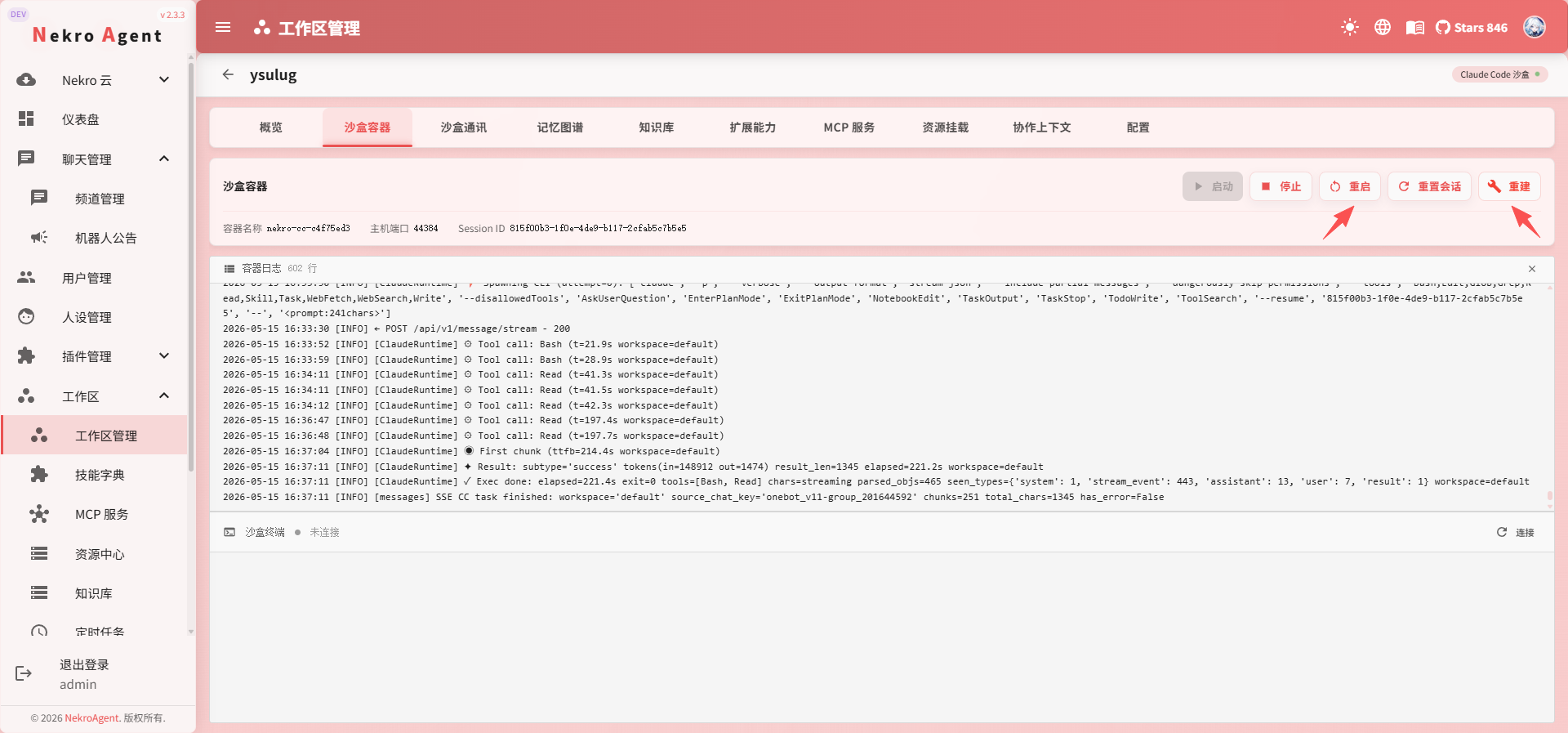
Restart
Try restarting first in the following situations:
- Sandbox status is abnormal
- Responses appear abnormal
- Execution is sluggish
- MCP service updates need to be reloaded
Rebuild
If restarting doesn't resolve the issue (e.g., long-term environment abnormalities), use Rebuild. Rebuild recreates the container while preserving workspace data.
Reset Session
If the AI's context has been diverted by old tasks, use Reset Session. This only clears the conversation context without affecting the sandbox environment.
Related Documentation
- Workspace Overview
- Quick Start
- MCP Service Management — Extend the sandbox's tool capabilities
- Memory System — CC task conclusions automatically consolidate into long-term memory